Tucko guides
Five everyday uses for your clipboard.
Find a lost link, keep a project together, or stop typing the same reply. Here’s how to do each in Tucko.
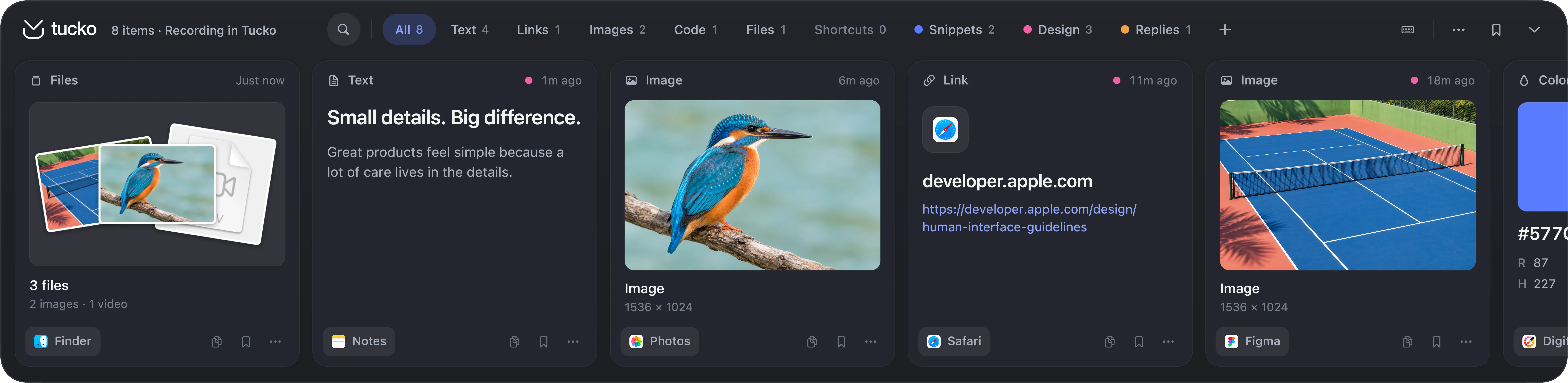
Find an earlier copy.
You’ve copied three more things since. The link is still in your history.
- Open the shelf. Press ⌥ ⇧ Space.
- Find your clip. Search for a word you remember. Press Space to preview it.
- Use it again. Return copies the selected item; ⌘ V pastes it into your app.
Group clips by project.
Choose New Pinboard… from a clip’s menu and name it after your project. Add more clips from their menus, or drag them onto the pinboard’s tab.
A website launch, for example
- The client’s brief
- Staging and reference links
- Approved copy and code snippets
Saved and pinned clips stay out of automatic history cleanup.
File references still point to the original files. A pinboard isn’t a file backup.
Save a reply as a text shortcut.
Save your signature, address or a reply you send often. Give it a code you wouldn’t type by accident.
;thanksThanks for sending this over.
I’ll take a look and get back to you.
- Copy the reply, then choose Add Text Shortcut from its card menu.
- Assign a code. Enable Expand text shortcuts in settings and allow Accessibility access.
Make a moodboard.
Select copied images and press ⌘ ⇧ M to make a moodboard. Keep the source links in the same project pinboard.
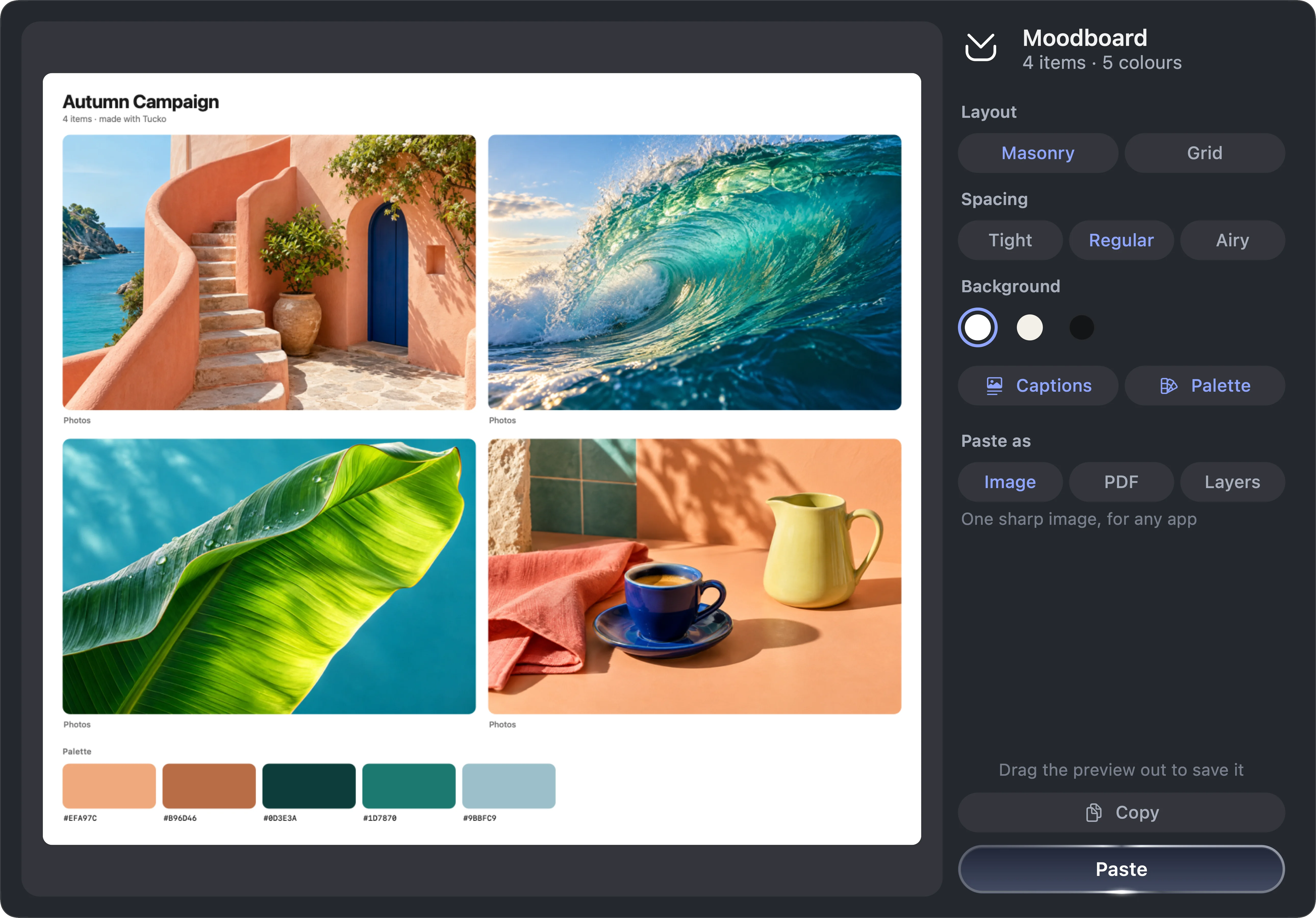
Copy the image itself for a visual reference. Copying its webpage address saves a link.
Paste several items in order.
Select your cards and choose Paste in Sequence. Each ⌘ V pastes the next item; you move between the fields.
- First pasteProject name
- Next pasteContact email
- Last pasteShort description
Requires Accessibility access. Escape stops the sequence. Copying something new also interrupts it.
Setup and privacy.
What you need
Tucko runs on macOS 12 or later, on Apple silicon and Intel. Text shortcuts, direct paste and paste sequences need Accessibility access.
What stays in your history
History is stored on your Mac. By default, Tucko keeps up to 30 days and 2,000 unsaved items, subject to storage limits. You can change retention; saved and pinned items are excluded from automatic cleanup.
What it can’t recover or search
Tucko records supported copies while it’s running with capture enabled. It can’t recover overwritten copies from before that. Search doesn’t read text inside images or the contents of referenced files.
Optional network and AI features
Link previews are off by default; enabling them contacts the linked website. Optional Apple Intelligence actions need macOS 26 or later on a supported Mac with Apple Intelligence enabled. Read the privacy policy.