Tucko guides
Turn a copied reply into a text shortcut on Mac
Tucko can replace a short code such as ;sig with a saved clipboard item. Copy the text, open its card menu, choose Add Text Shortcut and save your abbreviation. Enable Expand text shortcuts and allow Accessibility access to use it in another app.
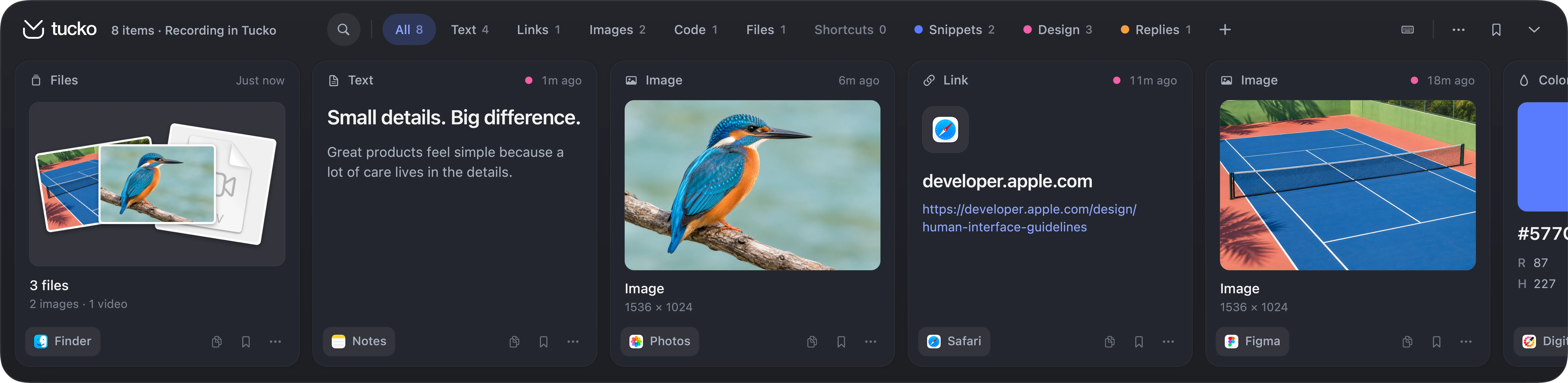
How to create a text shortcut in Tucko
- Copy your reusable text. With Tucko running and clipboard capture enabled, copy a signature, reply or other supported content.
- Open the shelf. Press ⌥ ⇧ Space and find the captured card.
- Assign an abbreviation. Open the card’s menu, choose Add Text Shortcut, enter a short code such as
;sig, and select Save. - Enable expansion. In Tucko’s settings, turn on Expand text shortcuts. Allow Accessibility access when prompted.
- Try it in a normal text field. Open Notes or your destination app and type the complete code. Tucko replaces it with the saved item.
Begin with a symbol such as a semicolon to avoid expanding an ordinary word by accident. Choose something you can remember and test it in a draft before using it in a conversation. You can change or remove a shortcut from the card’s menu.
Text shortcuts are different from keyboard shortcuts. Option–Shift–Space opens the clipboard shelf; ;sig is a sequence of typed characters that expands into saved content. Neither requires you to search the full history each time.
Three snippets worth setting up first
The examples below are ordinary saved text, not special variables or automatic integrations. Replace them with your own wording before saving them. Tucko inserts the content you assigned to the shortcut.
An email signature
Assign ;sig to a signature you use in apps that do not already add one.
Alex Morgan
Product designer
[email protected]
A reply you send regularly
Assign ;received to a short acknowledgement. Read it before sending so it still fits the message you received.
Thanks, I’ve received the files. I’ll review them and follow up with the next steps.
A reusable prompt or code fragment
Assign ;review to an instruction you repeatedly paste into a tool. This reuses text; it does not connect Tucko’s clipboard history to that service or run a model automatically.
Review the following text for clarity. Keep the meaning and point out any ambiguous instructions.
For a collection of prompts, links or code snippets, a pinboard can be more useful than memorising a code for every card. Use a shortcut for the items you type often, and browse the collection for everything else.
One shortcut, several items—or a paste sequence?
You can select several cards and assign them the same text shortcut. Typing that code pastes the group one after another, oldest first. This is useful when the content belongs together in the same destination.
Paste in Sequence is for a different task: selecting multiple cards and pasting them into successive fields, one Command–V at a time. It needs Accessibility access. Press Escape to stop the sequence early; copying something else also interrupts it.
For example, you might select a company name, contact email and short description. Paste the first card into the company field, move to the email field and paste the next. Tucko supplies the next clipboard item; you still choose the destination field. It does not infer the form’s structure.
Why isn’t my text shortcut expanding?
- Check the setting. Expand text shortcuts must be enabled; having a code saved on a card is not enough by itself.
- Check Accessibility access. Tucko needs permission to observe the shortcut and paste the replacement into the other app.
- Try a normal text field. Expansion is suppressed while macOS Secure Input is active, such as during password entry.
- Type the code together. Switching apps, clicking elsewhere or using navigation keys resets Tucko’s typed-shortcut buffer.
- Check for another text expander. Avoid assigning the same abbreviation to multiple apps while testing.
Use a harmless sample in Notes first. If the shortcut works there but not in your destination app, you have narrowed the problem to that context rather than the saved text. You can still find the card in your clipboard history, press Return to copy it and paste manually with Command–V.
Do text shortcuts need Apple Intelligence?
No. Text-shortcut expansion is separate from Tucko’s AI actions. Summarising, rewriting and translation require macOS 26 or later on a supported Mac with Apple Intelligence enabled. Reusing an already-saved snippet does not call those actions.